Free online memory palace builder

Build your own virtual memory palace

Create a 2D memory palace with up to 10 distinct rooms. Arrange a connected floor plan, choose one walking route, and save it for method of loci practice. No account or installation needed.

A six-room top-down memory palace with numbered stops and a connected walking route.

How to create a memory palace online

A useful palace starts with a route you can reconstruct, not the largest floor plan you can draw. Build a short route first, learn its order, then add the material you want to recall in the linked trainer.

  1. Step 1

    Build a small, connected floor plan

    Begin with the entrance and add three or four distinct rooms. Drag a room from the library on desktop. On mobile, open Add room, choose a room, and tap a highlighted position. You can build up to 10 rooms.

  2. Step 2

    Choose a continuous walking order

    Select Set route order. Keep build order when consecutive rooms share a doorway, or choose manually by picking highlighted neighbours. Every room must be visited once, with no jumps or repeated rooms.

  3. Step 3

    Save and learn the route

    Give the palace a recognizable name and save it. Open Verify saved route to learn and check its order in Route Builder. Saving a layout does not automatically mark its route as learned.

  4. Step 4

    Use the route for item recall

    After verification, select the route in Memory Palace Trainer. Attach a practice item to each room, hide the items, and retrieve them in route order or with optional random access. Item practice happens in the trainer, not in this visual editor.

From floor plan to mind palace

The memory palace technique, or method of loci, associates material with places along a mental route. This builder prepares the places and their order. You still need to learn that route and create the associations yourself.

For a simple example, use Entrance → Living room → Kitchen. Imagine a giant apple blocking the entrance, a bicycle bouncing on the sofa, and a candle melting over the kitchen counter. Hide the example, mentally visit those three rooms, and try to retrieve apple, bicycle, candle in order.

This is an example to practise mentally, not a preloaded item session. The separate trainer supplies its own practice items. Read the mnemonics guide for technique comparisons and research limitations.
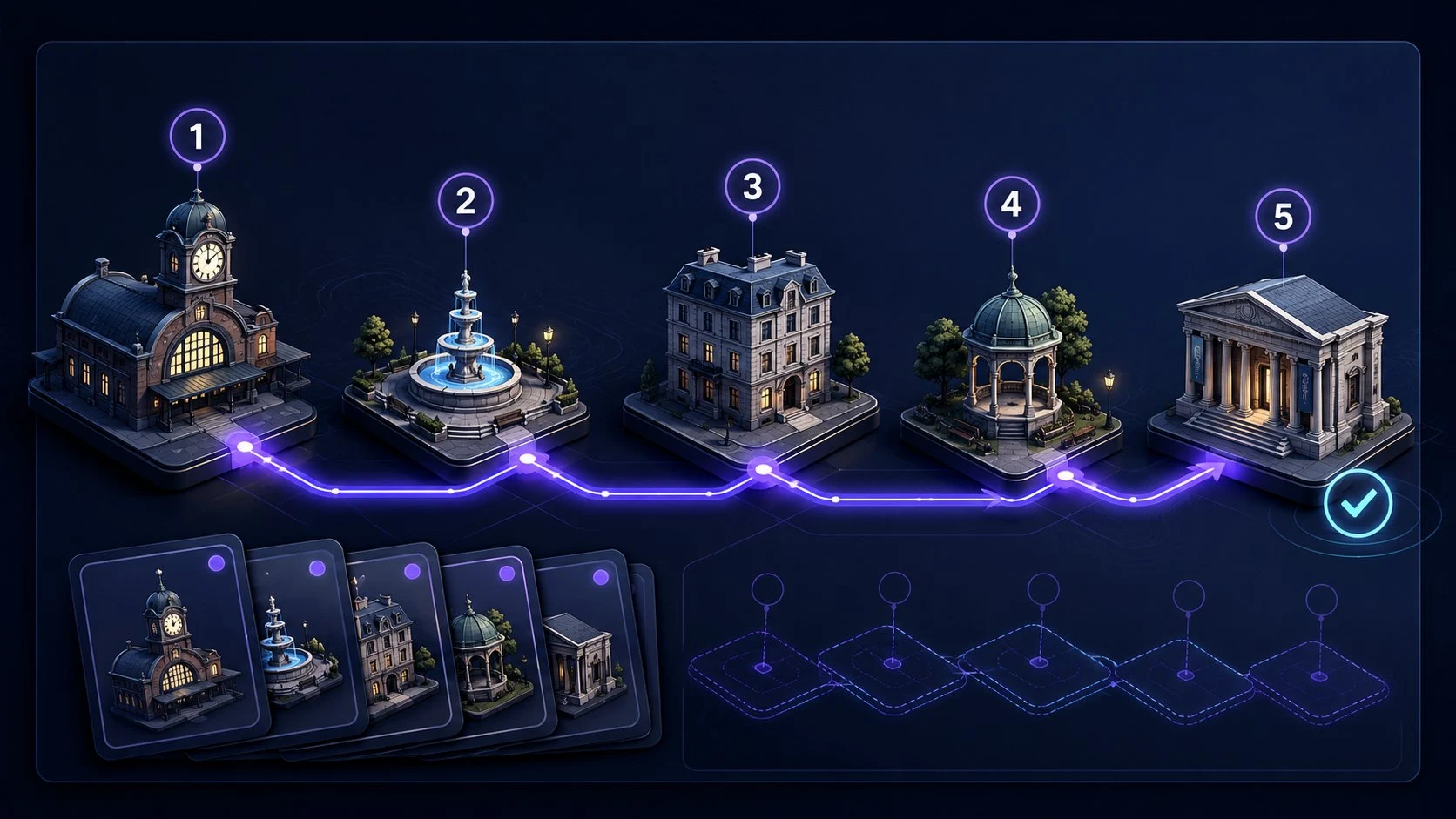
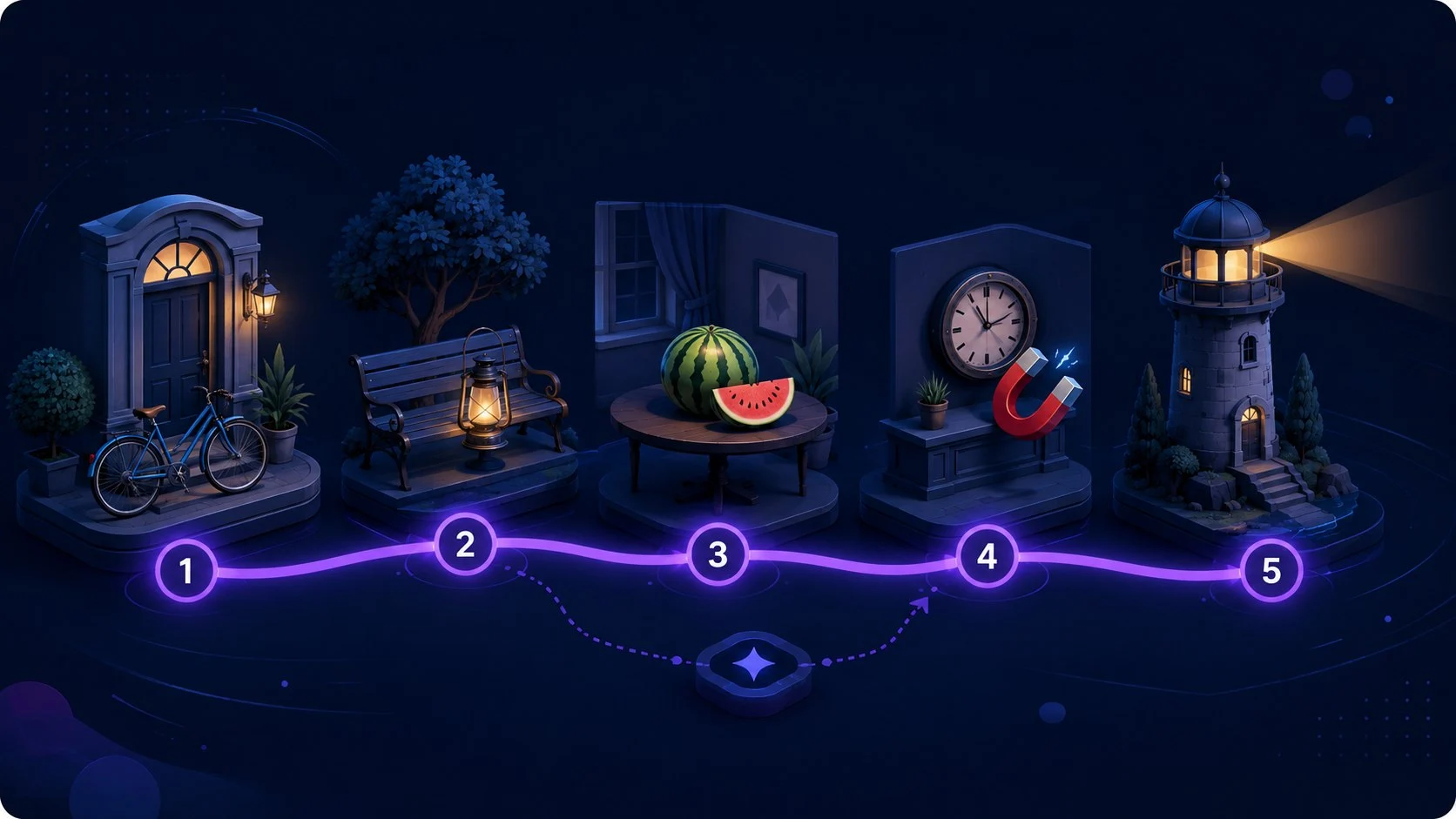
Make the route easy to recognize

  • Use different room types before adding several similar bedrooms or hallways.
  • Keep one clear walking direction. A loop or branching house can look convincing but be hard to turn into a route that visits each room once.
  • Place one-door rooms such as a balcony or bathroom at the ends. These are this tool's connection rules, not architectural requirements.
  • Learn a stable version before attaching items. Repeatedly rearranging the layout changes the cues you are trying to learn.

Controls and connection rules

  • Drag the canvas background to pan. Scroll to zoom on desktop, or use the zoom buttons. Center fits and centers the route within the available canvas area.
  • Entrance, hallway, and living room support four doors; kitchen and dining room three; bedroom and study two. Highlighted positions respect these limits.
  • Bathroom, toilet, laundry, balcony, and terrace have one doorway. Keep these at route ends. More than two such endpoints, or branching layouts, can prevent a walk that visits every room once.

Move or replace a room

Select a placed room to move it to an available position. To replace it, choose another type from the library and select the existing room. The entrance cannot be replaced. Door limits still apply.

Recover from a wrong turn

Cancel ends placement without adding a room. Undo removes the last addition. Removing a room also removes rooms disconnected from the entrance; use Undo removal to restore that group.

Reopen a saved layout

Select a saved 2D layout above the canvas to restore its rooms and walking order. Switching asks for confirmation only when you have unsaved edits. Create new floor plan starts a separate route instead of overwriting the selected one.

Private by design

Room names, positions, and route order are stored only in local storage for this website in this browser. There is no account-based sync or cloud backup. Clearing site data can delete your routes, so do not use the builder as the only record of important information. This editor does not accept practice items or recall answers.

Memory palace builder FAQ

Practical answers about building, saving, and using your visual route.

Is this memory palace builder free?

Yes. You can build, edit, and save a visual memory palace in your browser without signing up or installing an app. Saving requires local storage to be available.

What is a virtual memory palace?

It is a visual environment you learn as a route for the memory palace technique, also called the method of loci or mind palace technique. This builder uses a 2D floor plan. It is not a 3D walk-through, VR experience, or AI-generated palace.

Can I add items or study notes directly to the rooms?

Not in this editor. Here you create and save the room route. Verify that route in Memory Palace Route Builder, then select it in Memory Palace Trainer for item practice. The furniture shown in a room is a visual cue, not an editable collection of item slots.

Why can I not save a route through every room?

The route must visit every room exactly once through shared doorways. A connected floor plan can still contain branches that require backtracking. Move rooms into a continuous path, use highlighted neighbours when choosing the order, and keep one-door rooms at the ends. At most two one-door endpoints can be included in such a route.

Can I edit a saved memory palace?

Yes. Choose a saved 2D layout to restore its rooms and numbered walking order. Saving updates that route. Meaningful layout or order changes can require verification again. Guided routes and text-only personal routes are not editable floor plans and do not appear in this selector.

Where are my saved routes stored?

Saved names, room layouts, and route order stay in local storage for this website in this browser. They are shared with Route Builder and Memory Palace Trainer on the same browser profile, not synchronized between devices. Clearing site data, deleting a route, or ending a private-browsing session can remove them. Unsaved edits are not a backup.

Can I use the builder on a phone?

Yes. Tap Add room to open the room library, choose a room, then tap an available position on the canvas. Drag the background to pan, and use the zoom buttons or Center to adjust the view. You do not need to drag a room out of the mobile library.

Will designing a palace improve my memory by itself?

The editor helps you prepare a route; designing a floor plan is not a recall test. To practise the mnemonic, learn the route, form item-location associations, then recall without looking and review errors. This tool does not measure general memory ability or promise improved IQ, medical benefits, or guaranteed retention.